Self-Hosting Immich on Hetzner with Tailscale: A Complete Guide
Self-Hosting Immich on a VPS with Tailscale: A Complete Guide
Google Photos alternatives have exploded in popularity, and Immich has emerged as the best self-hosted option. It looks great, syncs automatically, and supports machine learning for face/object recognition. But there's always been one friction point: exposing it to the internet.
What if you didn't have to?
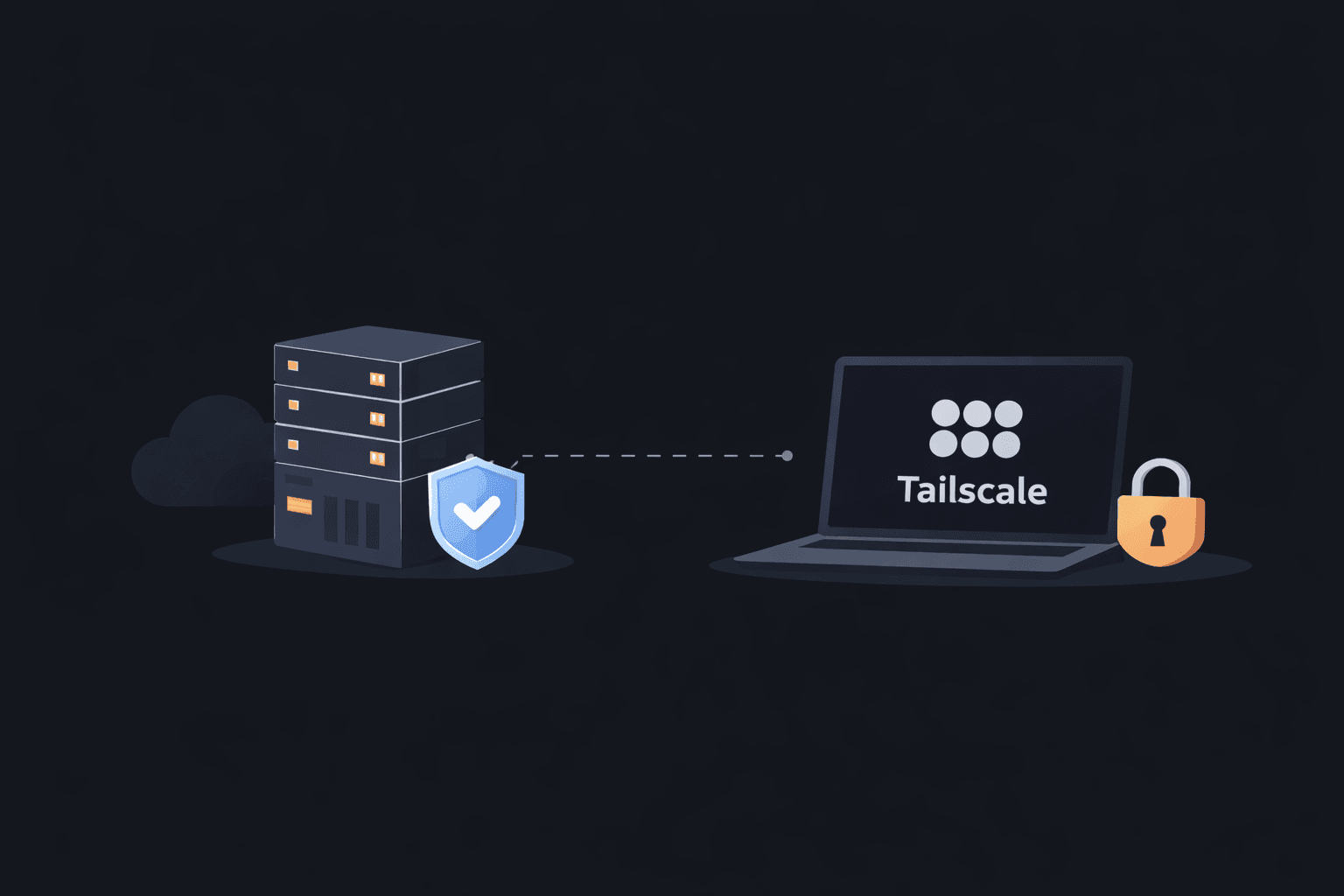
Instead of dealing with SSL certificates, reverse proxies, and worrying about security vulnerabilities, you can use Tailscale to create a private network. Your Immich server stays completely invisible to the public internet while remaining accessible from all your devices.
In this guide, I'll walk you through setting up Immich on a Hetzner VPS with a Storage Box for photos - all accessed exclusively through Tailscale.
Why This Setup?
Before diving in, here's why I chose this architecture:
- No public exposure: Your photo server isn't visible to port scanners or attackers
- No SSL hassle: Tailscale can provide HTTPS automatically
- No dynamic DNS: Tailscale handles connectivity even if your IP changes
- Hetzner Storage Box: Cheap, expandable storage separate from your compute
- Works everywhere: Phone, laptop, desktop, if it's on your tailnet, it connects
What You'll Need
- Hetzner VPS: CX21 or better (4GB+ RAM recommended for ML features)
- Hetzner Storage Box: For your actual photos (cheaper than VPS disk)
- Tailscale account: Free tier is plenty for personal use
- 30-60 minutes: Depending on your experiences with Linux
Part 1: Server Preparation
SSH into your fresh VPS and let's get the basics sorted.
Terminal
ssh root@YOUR_VPS_IP
First, update everything:
Terminal
apt update && apt upgrade -y
Install the packages we'll need:
Terminal
apt install -y curl wget cifs-utils ufw
Installing Docker
Immich runs entirely in Docker, making deployment straightforward:
Terminal
curl -fsSL https://get.docker.com | sh
systemctl enable docker
systemctl start docker
Verify it's working:
Terminal
docker --version
docker compose version
Part 2: Setting Up Tailscale
This is where the magic happens. Tailscale creates a secure mesh network between your devices.
Terminal
curl -fsSL https://tailscale.com/install.sh | sh
Now authenticate:
Terminal
tailscale up
You'll see a URL, open it in your browser and log into your Tailscale account. Once authenticated, your VPS joins your tailnet.
Check your new private IP:
Terminal
tailscale ip -4
You'll get something like 100.x.x.x. Save this, it's how you'll access Immich.
Part 3: Mounting the Storage Box
Hetzner Storage Boxes are perfect for photo storage: they're cheap, scalable, and separate from your compute. If your VPS dies, your photos survive.
Create the mount point:
Terminal
mkdir -p /mnt/storagebox
Store your credentials securely:
Terminal
nano /etc/smbcredentials
Add your Storage Box credentials (find these in Hetzner Robot):
/etc/smbcredentials
username=uXXXXXX
password=YOUR_STORAGE_BOX_PASSWORD
Lock down the file:
Terminal
chmod 600 /etc/smbcredentials
Now add the mount to /etc/fstab for automatic mounting on boot:
Terminal
nano /etc/fstab
Add this line (replace uXXXXXX with your username):
/etc/fstab
//uXXXXXX.your-storagebox.de/backup /mnt/storagebox cifs credentials=/etc/smbcredentials,uid=1000,gid=1000,file_mode=0660,dir_mode=0770,_netdev,nofail 0 0
Mount it and verify:
Terminal
mount -a
df -h | grep storagebox
Create the directory structure Immich needs:
Terminal
mkdir -p /mnt/storagebox/immich/upload
mkdir -p /mnt/storagebox/immich/thumbs
mkdir -p /mnt/storagebox/immich/encoded-video
chown -R 1000:1000 /mnt/storagebox/immich
Part 4: Deploying Immich
Create a home for Immich:
Terminal
mkdir -p /opt/immich
cd /opt/immich
Grab the official docker-compose file:
Terminal
wget -O docker-compose.yml https://github.com/immich-app/immich/releases/latest/download/docker-compose.yml
Configuration
Create the database directory (keep this local for performance-databases hate network storage):
Terminal
mkdir -p /opt/immich/postgres
Now create the environment file:
Terminal
nano /opt/immich/.env
Add this configuration:
/opt/immich/.env
# Database
DB_PASSWORD=CHANGE_THIS_TO_A_STRONG_PASSWORD
DB_USERNAME=postgres
DB_DATABASE_NAME=immich
DB_DATA_LOCATION=/opt/immich/postgres

# Redis
REDIS_HOSTNAME=immich_redis

# Upload Location (Storage Box)
UPLOAD_LOCATION=/mnt/storagebox/immich/upload

# Version
IMMICH_VERSION=release

# Timezone (optional)
TZ=Europe/Amsterdam
Generate a strong password:
Terminal
openssl rand -base64 32
Copy that output and replace CHANGE_THIS_TO_A_STRONG_PASSWORD in your .env file.
Secure it:
Terminal
chmod 600 /opt/immich/.env
Part 5: Locking Down Access
Here's the key security piece. We'll configure the firewall to only allow Immich connections from Tailscale:
Terminal
ufw --force reset
ufw default deny incoming
ufw default allow outgoing

# SSH (keep this for now, we'll restrict it later)
ufw allow ssh

# Immich - ONLY accessible via Tailscale
ufw allow in on tailscale0 to any port 2283

ufw --force enable
Check your work:
Terminal
ufw status
You should see:
Output
Status: active

To                         Action      From
--                         ------      ----
22/tcp                     ALLOW       Anywhere
2283 on tailscale0         ALLOW       Anywhere
Port 2283 is only accessible through the Tailscale interface. Try accessing it from the public IP - it won't work.
Part 6: Launch
The moment of truth:
Terminal
cd /opt/immich
docker compose up -d
Watch the containers come up:
Terminal
docker compose ps
All containers should show as "running". If you want to see what's happening:
Terminal
docker compose logs -f
(Press Ctrl+C to exit logs)
Part 7: Access Your New Photo Server
From any device on your Tailscale network, open:
Browser
http://100.x.x.x:2283
Replace 100.x.x.x with your VPS's Tailscale IP.
If you enabled MagicDNS in Tailscale, you can use:
Browser
http://your-vps-hostname:2283
Create your admin account on first visit, and you're in.
Mobile App Setup
- Install the Immich app (iOS / Android)
- Ensure Tailscale is connected on your phone
- Server URL:
http://100.x.x.x:2283 - Log in with your credentials
Your photos now sync privately, without ever touching the public internet.
Taking It Further
Adding HTTPS (Recommended)
Tailscale can handle HTTPS for you with zero configuration. In your Tailscale admin console:
- Go to DNS settings
- Enable MagicDNS
- Enable HTTPS Certificates
Then use Tailscale's built-in reverse proxy:
Terminal
tailscale serve --bg http://127.0.0.1:2283
Now access via:
Browser
https://your-vps-hostname.tailnet-name.ts.net
No certificate management, no nginx config, no Let's Encrypt cron jobs.
Maximum Security: SSH via Tailscale Only
Once you're confident Tailscale is reliable, lock down SSH too:
Terminal
ufw delete allow ssh
ufw allow in on tailscale0 to any port 22
Warning: Make absolutely sure Tailscale is working before doing this, or you'll lock yourself out!
Maintenance
Updating Immich
Check the Immich releases monthly for updates:
Terminal
cd /opt/immich
docker compose pull
docker compose up -d
docker system prune -f
Database Backups
Your photos live on the Storage Box, but metadata, albums, and face recognition data live in PostgreSQL. Back it up:
Terminal
cd /opt/immich
docker compose exec -T immich_postgres pg_dumpall -U postgres > ~/immich_db_backup.sql
Consider automating this with a cron job and copying backups to your Storage Box.
Troubleshooting
Can't access Immich from your phone?
- Is Tailscale connected on both devices? (
tailscale status) - Is Immich running? (
docker compose ps) - Can you access it locally on the VPS? (
curl http://localhost:2283)
Storage Box won't mount?
- Can you ping it? (
ping uXXXXXX.your-storagebox.de) - Are credentials correct? (
cat /etc/smbcredentials)
Tailscale keeps disconnecting?
Terminal
tailscale up --operator=$USER
Wrapping Up
You now have:
- A fully functional Immich server for photo backup
- Cheap, expandable storage via Hetzner Storage Box
- Zero public internet exposure thanks to Tailscale
- Optional HTTPS with zero certificate management
The total cost? Around €5-10/month depending on your storage needs. Compare that to Google One's pricing, and you're getting more storage, more control, and actual privacy.
Your photos belong to you. Now your infrastructure does too.